
How to Convert Sony S-Log3 to Rec.709 in DaVinci Resolve
Set the right CST inputs, balance skin tones, and add a creative look without converting your footage twice.
The short answer
For Sony footage recorded in S-Gamut3.Cine / S-Log3, add Color Space Transform on Resolve's Color page. Use Sony S-Gamut3.Cine / Sony S-Log3 as the input and Rec.709 / Gamma 2.4 as the output.
One CST node is enough for the conversion. Use the four-node setup below to balance the shot, refine skin and add a look.
This guide uses a manual DaVinci YRGB project for SDR delivery. Use it with S-Log3 clips from cameras such as the FX3, FX30, A7S III, A7 IV and ZV-E1. RAW and HDR need a different setup.
Already using Resolve Color Management? Assign the correct input profile there and skip the manual CST. Two conversions can produce harsh contrast and oversaturated color.
Check the recording profile first
S-Log3 describes the gamma curve, not the color gamut. Check both settings before grading. On cameras with unchanged Picture Profile presets, PP8 pairs S-Log3 with S-Gamut3.Cine; PP9 pairs it with S-Gamut3. Presets can be edited, and newer cameras also have a separate Log Shooting menu.
Check the camera settings if you are unsure; see Sony's Picture Profile guide. S-Cinetone is not S-Log3.
Sony S-Log3 CST settings
Open Project Settings > Color Management, choose DaVinci YRGB, and set the timeline color space to Rec.709 Gamma 2.4. On the Color page, add Color Space Transform from the Effects library.
| CST setting | S-Gamut3.Cine footage | S-Gamut3 footage |
|---|---|---|
| Input Color Space | Sony S-Gamut3.Cine | Sony S-Gamut3 |
| Input Gamma | Sony S-Log3 | Sony S-Log3 |
| Output Color Space | Rec.709 | Rec.709 |
| Output Gamma | Gamma 2.4 | Gamma 2.4 |
| Tone Mapping Method | DaVinci | DaVinci |
| Gamut Mapping Method | Saturation Compression | Saturation Compression |
Start with these mapping settings and leave custom luminance overrides at their defaults. Check bright skies and saturated colors before grading.
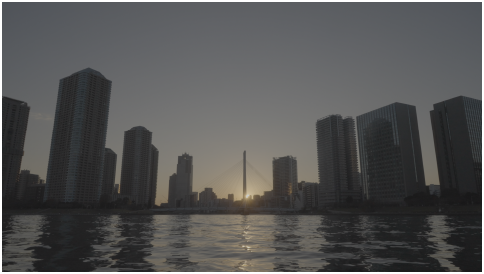

Images: Sony, Help Guide for Creators. Sony's grading example, not a preview of the CST settings or a Luma Dune LUT.
A four-node workflow
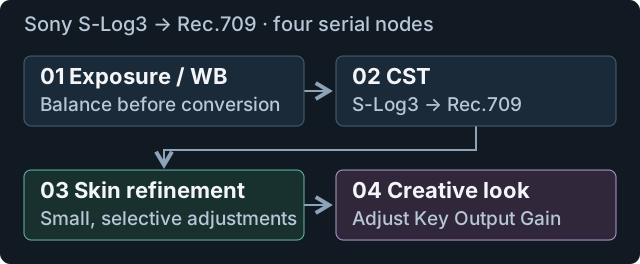
Keep the technical conversion separate from the look. Here, global balance happens before CST; selective skin adjustments happen after it, where the image is easier to judge.
1. Set up the project
Use the manual project settings above and remove any existing Log-to-Rec.709 conversion. Start with the original Log clip, not a copy with a look baked in.
2. Build four serial nodes
On the Color page, use Alt+S on Windows or Option+S on Mac. Label the nodes Exposure / WB, CST, Skin refinement and Creative look.
3. Convert on Node 2
Add Color Space Transform to Node 2 and enter the settings for your recording gamut. Leave this node enabled and at full strength while making the other adjustments.
4. Balance on Node 1
Keep Node 2 enabled. Adjust exposure while watching the waveform, then use Temp and Tint in the Primaries palette to balance a neutral object in the same light as the face. Check that bright areas of skin still retain detail.
5. Refine skin on Node 3
Skip this node if skin already looks natural. Otherwise, open Curves: use Hue vs Hue to shift a color, or Hue vs Sat to reduce its saturation. Use the curve eyedropper to sample skin in the viewer, then make a small adjustment. Check clothing and other objects with similar colors, and play the clip to judge the result in motion.
6. Add the look on Node 4
Choose a creative LUT that expects Rec.709, not unconverted S-Log3. Lower Key Output > Gain on this node if the look is too strong. Compare with the node disabled, then export a short test.
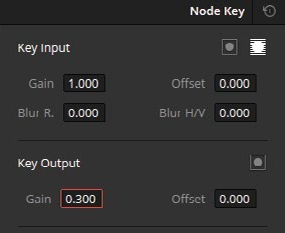
Key palette screenshot: Blackmagic Design's Resolve 20 Colorist Guide, printed page 201.
Fix green or yellow skin without overcorrecting
If skin looks green, check a white or gray object in the same light. If it also looks green, adjust Tint slightly toward magenta on Node 1. If the image is too warm or cool, adjust Temp. Stop when the neutral object and the face both look believable.
| What you see | What to check |
|---|---|
| Skin and neutral objects both look green | Correct the overall cast on Node 1 before using skin curves |
| Only part of the face looks green | Mixed lighting or reflected light; a global tint adjustment may spoil the other side |
| Skin turns orange only with the look enabled | Reduce or replace the creative look before changing the base grade |
| Several colors look wrong after conversion | Confirm S-Gamut3.Cine versus S-Gamut3 and check for a second transform |
Use the vectorscope alongside the viewer. Its skin-tone indicator is a reference, not a target every face must hit; clothing and backgrounds also appear in the trace. Preserve the scene's lighting rather than forcing every face onto the line. See Blackmagic's color tools overview for the Primaries and curve controls.
Exposure: protect the shot, not a fixed offset
Expose with enough light for the shadows you need, while protecting important highlights. Avoid applying a blanket “always overexpose by two stops” rule to every scene.
ETTR means exposing farther to the right without clipping highlights you want to keep. It does not recover clipped channels, and it leaves less room for an unexpected bright subject. Check whether your monitoring tools measure Log or a LUT-processed image before copying someone else's zebra settings.
Base ISO and Cine EI behavior vary by camera and mode. Use your camera's instructions rather than transferring FX3 settings to an FX30 or A7 IV. In post, balance exposure before the conversion; lifting a dark image can also reveal its noise.
CST or a technical LUT?
Use CST when you want to adjust the transform inside Resolve. Use a matching technical LUT when your editor or monitor needs a fixed file. Neither is automatically better: the input, output and mapping must suit the shot.
Sony provides S-Log3 LUT downloads. Read the supplied profile information and device requirements. These LUTs need not match the CST settings above exactly. Apply a technical LUT instead of the CST, not on top of it.
Frequently asked questions
Does S-Log3 need a LUT in Resolve?
No. Color Space Transform or Resolve Color Management can handle the conversion. A LUT is an alternative when you want a fixed transform.
Why does the export look flatter in QuickTime?
Reimport a short export into Resolve without applying another conversion. If it matches there but not in QuickTime, inspect playback color management and export tags before changing the grade. See our Mac export checks.
Will a creative LUT fix white balance or mixed lighting?
Not reliably. Balance the shot first, then use the look for contrast and color style. A good starting image gives you more control over the final skin tones.