
Apple Log vs. Apple Log 2: What Changed and Which LUT Should You Use?
The Log curve is the same; the color gamut changed. Learn how to identify your footage and choose the matching conversion LUT.
The short answer
Use an Apple Log to Rec.709 LUT for Apple Log footage, and an Apple Log 2 to Rec.709 LUT for Apple Log 2 footage. Choose by the format used to record the clip.
The two formats share the same Log curve. The difference is the color gamut: Apple Log uses Rec.2020; Apple Log 2 uses Apple Wide Gamut, also called Apple Gamut. Their technical conversion LUTs are not interchangeable.
Apple Log vs. Apple Log 2 at a glance
| What to check | Apple Log | Apple Log 2 |
|---|---|---|
| Input color gamut | Rec.2020 / BT.2020 | Apple Wide Gamut / Apple Gamut |
| Log curve | Apple Log | The same Apple Log curve |
| Technical LUT to choose | Apple Log to Rec.709 | Apple Log 2 to Rec.709 |
| After a correct SDR conversion | Rec.709, ready for grading | Rec.709, ready for grading |
Apple's Apple Log and Apple Log 2 definitions identify the different primaries. The OpenColorIO implementation uses the same transfer function for both.
Illustration of a mobile video setup.
What changed: the gamut, not the Log curve
The Log curve describes how brightness is stored. The gamut defines which colors the red, green, and blue values represent. A conversion needs to match both.
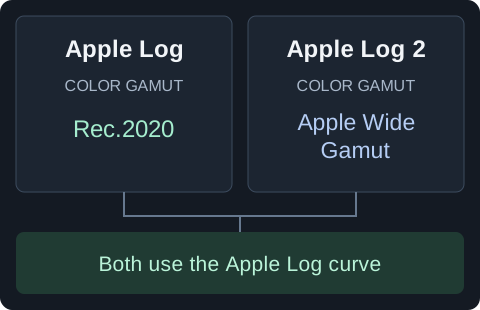
Apple Log 2 uses a wider gamut. Converting it as if it were Rec.2020 can shift colors, even though the Log curve is the same.
In DaVinci Resolve, an Apple Log 2 conversion can therefore use Apple Log for Input Gamma, paired with the Apple Log 2 gamut for Input Color Space. See the Resolve CST settings.
Which iPhones support Apple Log 2?
Apple Log 2 arrived with iPhone 17 Pro and Pro Max. iPhone 18 Pro and Pro Max also support it. Original Apple Log is used on iPhone 15 Pro and 16 Pro models, including Pro Max.
On newer phones, check which Log format was selected for the recording. Apple's ProRes recording instructions describe the choices on 17 Pro and 18 Pro models. Third-party apps have their own recording settings.
How to check which format you recorded
Check the recording details; both formats can look flat before conversion.
- For a recent shoot: check the Log setting used when you recorded, or your recording notes.
- For older footage or clips from someone else: look for an explicit Apple Log or Apple Log 2 label in the clip information. If none is available, ask whoever recorded it. ProRes or HDR alone does not identify the Log format.
The camera app's current setting may differ from the one used for an older clip.
Why the wrong technical LUT can change your colors
An Apple Log to Rec.709 LUT expects Rec.2020 input. An Apple Log 2 to Rec.709 LUT expects Apple Gamut input. The wrong LUT interprets the colors incorrectly.
You may see shifts in hue or saturation, especially in colorful objects and lights. Highlight rendering also depends on how the LUT maps brightness and color into Rec.709.
If a conversion looks wrong, check the recording profile first. Lowering the LUT strength is not a substitute for choosing the correct input.
After the correct conversion, both formats can use the same creative LUT made for Rec.709. Check whether your LUT includes the Log conversion or needs it applied first.
Does Log 2 give you cleaner shadows or more highlight detail?
Apple Log 2's wider gamut does not, by itself, mean less noise or more highlight detail. Both formats use the same Log curve; the camera, exposure, processing, and conversion also affect the result.
For a useful comparison, match the exposure and use the correct conversion for each clip. A LUT that brightens shadows or softens highlights can make footage look different without capturing any extra detail.
Choose the matching LUT
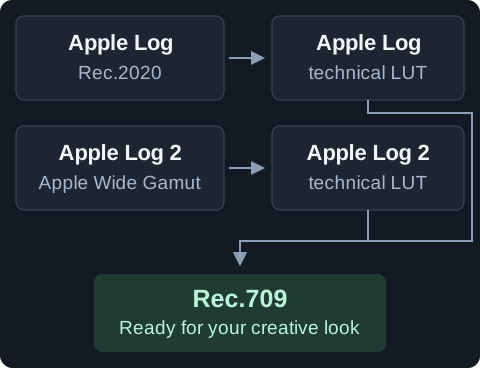
- Recorded in Apple Log: choose the Apple Log to Rec.709 LUT.
- Recorded in Apple Log 2: choose the Apple Log 2 to Rec.709 LUT.
Both links select the matching format on our free download page. Use 33-point for Blackmagic Camera, or 33-point or 65-point in a desktop app that supports it.
If your editor already converts the footage through a matching CST or automatic color management, skip the technical LUT to avoid converting it twice.
For the next steps, use the DaVinci Resolve workflow, Premiere Pro workflow, or Blackmagic Camera setup.