
How to Convert Apple Log to Rec.709 in DaVinci Resolve
Convert Apple Log and Apple Log 2 with the right CST inputs, build a four-node workflow, adjust creative LUT strength, and troubleshoot washed-out Mac exports.
The short answer
For original Apple Log footage, add Color Space Transform to a node on Resolve's Color page. Set the input to Rec.2020 / Apple Log and the output to Rec.709 / Gamma 2.4. Apple Log 2 needs its own input gamut; use the table below.
One CST node is enough for the conversion. Use the four-node workflow below when you also want to balance the shot and add a creative look.
These steps use a manual DaVinci YRGB project for SDR delivery. Already using automatic color management? Read the managed-project note first.
Go straight to: Apple Log 2 · CST steps · Install a downloaded LUT · Adjust LUT strength.
Exact Color Space Transform (CST) settings table
Use the profile selected in your camera app. Apple Log on iPhone 15 Pro and 16 Pro uses the first column. Apple introduced Log 2 on iPhone 17 Pro.
| CST parameter | Original Apple Log | Apple Log 2 |
|---|---|---|
| Input Color Space | Rec.2020 | Apple Log 2 (Apple Wide Gamut) |
| Input Gamma | Apple Log | Apple Log |
| Output Color Space | Rec.709 | Rec.709 |
| Output Gamma | Gamma 2.4 | Gamma 2.4 |
| Tone Mapping Method | DaVinci | DaVinci |
| Gamut Mapping Method | Saturation Compression | Saturation Compression |
Start with these mapping settings, then check bright clouds and saturated lights for clipping or color shifts.
Both profiles use the Apple Log curve; their input gamuts differ. For help identifying your footage, see Apple Log vs. Apple Log 2. See Apple's format definitions and the OpenColorIO implementation.
A practical 4-node workflow for Apple Log
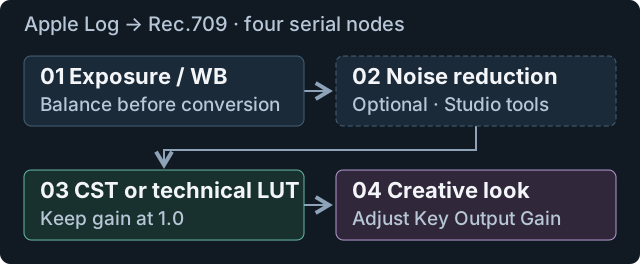
This layout keeps corrections, conversion, and the creative look separate, so you can adjust each independently. Noise reduction on Node 2 is optional; skip it for clean footage. The node numbers below follow this layout.
Apple Log to Rec.709 in six steps
1. Set up the project
Import the original Log clip. If a Rec.709 conversion was baked into the recording, skip the technical transform.
Open Project Settings > Color Management. Choose DaVinci YRGB and set the timeline color space to Rec.709 Gamma 2.4. Check that no project, group, or timeline LUT is already converting the clip.
2. Build the node tree
On the Color page, add serial nodes with Alt+S on Windows or Option+S on Mac. Label the four nodes Exposure / WB, Noise Reduction, CST / Technical LUT, and Creative Look. Leave Node 2 unused unless the shot needs cleanup.
3. Convert on Node 3
Search the Effects library for Color Space Transform and drag it onto Node 3. Enter the settings for your profile from the table above. Leave any custom luminance overrides at their defaults initially.
To use a LUT instead, download the free Apple Log and Apple Log 2 to Rec.709 LUTs and follow the installation steps. Apply it on Node 3 instead of CST. CST itself needs no download.
4. Correct exposure and white balance on Node 1
Leave Node 3 enabled while adjusting Node 1. Watch the waveform for clipped highlights or crushed shadows. Use a neutral object and the RGB parade to judge white balance, then check that skin still suits the scene's lighting.
If a bright window clips, lower exposure on Node 1 and check the highlight mapping. Darkening the image after a clipping LUT will not restore the detail.
5. Use noise reduction only where needed
In Resolve Studio, open Motion Effects on Node 2. Try a small amount of temporal noise reduction and play the shot. If moving faces or edges leave trails, back it off. Inspect texture at 100% before adding spatial reduction. These built-in noise reduction tools require Studio; skip this step in the free version.
Here, noise reduction works on the image before the conversion adds contrast. Other working spaces may call for a different order.
6. Add a look on Node 4
Apply a creative LUT made for Rec.709 on Node 4. The Luma Dune Apple Log Creative LUT Starter Pack includes Subtle and Full versions for this stage.
Adjust the look with Key Output Gain. Turn Node 4 off to compare it with the neutral conversion, then export a short section before rendering the full timeline.
If you already use Resolve Color Management
Assign the correct clip input profile and SDR output in project settings, and skip the manual conversion node. If your timeline uses DaVinci Wide Gamut, use a look designed for that space or wrap a Rec.709 LUT with matching transforms.
The steps above cover recorded Apple Log clips. ProRes RAW decoding and HDR output need their own setup.

How to install a .cube LUT in DaVinci Resolve
- Download the
.cubefile that matches your recording profile. Extract it first if it arrived in a ZIP. - Open Project Settings > Color Management. In the Lookup Tables section, click Open LUT Folder.
- Copy the file into that folder. A named subfolder such as
Apple Logmakes it easier to find later. - Return to Resolve, click Update Lists, and save the settings.
- On the Color page, select Node 3. Right-click it, open LUTs, and choose the installed technical LUT. Leave CST off that node.
Use the folder button because the path varies by installation. The Resolve 20 Colorist Guide, pages 322–323 also recommends Tetrahedral under 3D lookup table interpolation. Use the same interpolation setting when comparing LUTs.
For a creative LUT, use the same installation process but apply it to Node 4 after normalization. If the file does not appear, check that you copied the extracted .cube, then refresh the LUT browser or Update Lists again.
Apple Log 2 in DaVinci Resolve
For a recorded Apple Log 2 clip, keep the same node tree and change the source settings on Node 3:
- Set Input Color Space to Apple Log 2, the Apple Wide Gamut input.
- Set Input Gamma to Apple Log.
- For this SDR output, use Rec.709 / Gamma 2.4 and the mapping starting points above.
If your CST has no Log 2 input gamut, use the AppleLog2ToRec709 technical LUT from the free download page on Node 3 instead. Choosing original Apple Log's Rec.2020 input is not an equivalent workaround.
If reds or blues look wrong with Node 4 off, recheck the camera profile and Node 3 input settings before changing the grade.
How to control and adjust LUT strength in DaVinci Resolve
Select the creative LUT node, open the Key palette, and lower Key Output > Gain from 1.0. Try 0.5, then raise it toward 0.7 if you want more of the look.
| Key Output Gain | Creative node contribution |
|---|---|
| 1.0 | Full result |
| 0.7 | 70% blend |
| 0.5 | 50% blend |
| 0.0 | No contribution |
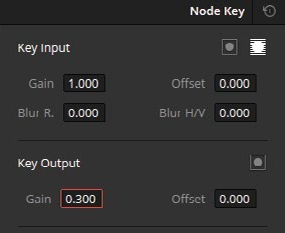
Find Key Output Gain in the Key palette. Screenshot: Blackmagic's Resolve 20 Colorist Guide, printed page 201. Its exercise uses 0.300; choose a value that suits your shot.
Gain fades every adjustment on the node. Keep exposure and white balance on Node 1 so they stay put when you reduce the look.
Keep the technical conversion at full strength
Leave Node 3 at 1.0. Lowering it mixes converted color with unconverted Log. To soften the look, adjust Node 4 instead.
For a combined conversion-and-look LUT, blend against a separate neutral conversion in the same output space.
When a Layer Mixer helps
For one LUT, the serial node is enough. To blend branches, feed the neutral Rec.709 image and a creative version into a Layer Mixer. Put the creative branch in the foreground, use Normal compositing, and lower its Key Output Gain. Both branches need the same color space and gamma.
Why does my Resolve export look washed out in QuickTime?
First check whether the export differs inside Resolve or only in QuickTime. That tells you where to look before changing the grade.
A 10-second export check
Choose a section with skin, movement, and a bright window or sky:
- Render ten seconds with your SDR preset. Note the codec, color-space tag, and gamma tag in Deliver's advanced settings.
- Reimport the file into the same manual DaVinci YRGB project. Put it on a separate timeline without a clip CST or LUT, and check for group or timeline processing.
- Compare it with the graded original in the same viewer and scopes. A large contrast change here points to render settings, output processing, or data levels. Small codec differences are possible.
- Open the same file in QuickTime and on your delivery platform. If it matches in Resolve but looks flatter there, investigate playback color management.
On a Mac, check Use Mac display color profiles for viewers alongside the macOS display profile or reference mode. Turn off True Tone and Night Shift while judging color. Change one setting at a time and compare the same file.
Gamma tags describe the file; gamma transforms change its pixel values. Check that Deliver's tags describe your intended output before changing CST Output Gamma. Retagging cannot fix a wrong input gamut.
Resolve 20.2.2 changed Rec.709 viewer color management on Mac; older fixes may behave differently in newer versions. See Blackmagic's release notes. Record your full Resolve and macOS versions, display profile, viewer setting, and export tags when comparing results.
Gamma 2.4 or Rec.709-A?
Keep Gamma 2.4 for this article's SDR workflow on Mac or Windows. Use Rec.709-A only for a defined Apple playback setup that you have checked with its viewer settings and export tags. It cannot make every player and display match.
CST vs. 33-point and 65-point technical LUT: which should you use?
Start with CST for grading in Resolve: you can adjust the conversion later. Use a technical LUT when you need the same fixed transform in another editor or on a monitor.
| Option | Choose it when | Main tradeoff |
|---|---|---|
| CST | You want to adjust the conversion in Resolve | Settings must match the source and delivery |
| 33-point LUT | You want a compact file with broad compatibility | Mapping is fixed and sampled on a finite grid |
| 65-point LUT | Your desktop app supports it and you need denser sampling | Larger file; improvement depends on the transform |
What do the extra grid points change?
A 33-point LUT stores 35,937 RGB samples; a 65-point LUT stores 274,625. Software fills the gaps between samples through interpolation. For the same transform, a denser grid can reduce approximation error where color changes sharply.
A denser grid adds no captured detail or dynamic range. Enlarging a 33-point file cannot recover missing information, and 65 points does not automatically beat CST.
For a desktop LUT workflow, choose 65-point if your app supports it. Choose 33-point when compatibility or file size matters. The visible difference depends on the transform and the shot.
If CST and a LUT look different, compare the input profile, output gamma, and tone/gamut mapping first. Those choices can matter more than the grid size.
Get the free 33-point and 65-point Apple Log conversion LUTs. Select Apple Log or Apple Log 2 before choosing the grid. These are fixed SDR Rec.709 conversions; do a short comparison before replacing an established CST setup.
Common Apple Log problems
| Symptom | Where to start |
|---|---|
| Harsh contrast or excessive saturation | Check for a second CST, technical LUT, project LUT, or managed conversion |
| Wrong colors on Apple Log 2 footage | Check its input gamut; original Apple Log uses Rec.2020 |
| Abruptly clipped highlights | Adjust exposure upstream and inspect tone mapping |
| Creative LUT is too strong | Lower Key Output Gain on Node 4 |
| Skin looks unnatural | Check the source profile and white balance before changing the look |
| Flat only in QuickTime | Follow the export comparison above |
| Trails behind moving edges | Reduce temporal noise reduction |
Frequently asked questions
Does Apple Log need a LUT in DaVinci Resolve?
No download is required. CST or Resolve Color Management can perform the conversion. Use a matching technical LUT if you prefer a fixed transform.
Can I adjust LUT strength in free Resolve?
Yes, with Key Output Gain on the creative node. The optional temporal and spatial noise reduction in this guide requires Studio.
Can a creative LUT replace the conversion?
Only when it explicitly includes the right Log-to-output transform. The Luma Dune Creative Pack expects a neutral Rec.709 image first.
Related guides: Working with Sony footage? See the Sony S-Log3 to Rec.709 workflow. Recording with a preview LUT? See the Blackmagic Camera setup. Editing in Adobe? Follow the Premiere Pro workflow.
Sources and scope: interface references use Blackmagic's Resolve 20 training guide; workflow images are illustrative. This guide has not been tested with camera footage or a specific Resolve/macOS playback setup.