
Use an Apple Log to Rec.709 LUT in Blackmagic Camera
Set up Log recording, import a LUT from Files, and check which settings affect the preview or the recorded clip. Includes external SSD setup.
The short answer
To use an Apple Log LUT in Blackmagic Camera, first select Apple Log or Apple Log 2 as the recording color space. Import a matching 33-point .cube LUT, select it for the preview, and leave Record LUT to Clip off if you plan to grade later.
The preview will have Rec.709 color and contrast. The recording will stay in Log.
Jump to: Record in Log · Import a LUT · Record LUT on or off? · External SSD setup.
This guide covers Blackmagic Camera on iPhone. Available formats and controls depend on your device and app version.
How to record Log in Blackmagic Camera
- Open Settings > Record and find Color Space.
- Choose Apple Log - HDR or Apple Log 2 - HDR, whichever you intend to shoot. Remember that choice when downloading the LUT.
- Select a codec, resolution, and frame rate supported by your phone. For a ProRes editing workflow, ProRes 422 at 4K, 24, 25, or 30 fps is a reasonable starting point. Use the frame rate your project needs.
- Under Settings > Media > Save Clips to, choose where to save the recording. If using an SSD, select a folder on that drive.
These labels come from Blackmagic's iOS specifications. If a Log option is missing, check your device support and app version. Choosing Rec.2020 - HDR is not a substitute for Apple Log.
ProRes and Log are separate choices: ProRes is the codec; Log describes how color and brightness are encoded. Turning off Record LUT to Clip does not turn a Rec.709 recording into Log. This workflow uses regular ProRes, not ProRes RAW.
Before you start
Not sure which format you recorded? See Apple Log vs. Apple Log 2.
Download the free Apple Log and Apple Log 2 to Rec.709 LUTs. Match the Log format you selected above and choose 33-point. Our download is a .cube file, ready to import.
Blackmagic Camera accepts 17-point and 33-point 3D LUTs. Keep the 65-point version for compatible desktop software. The official product page lists LUT support.
Import and use the LUT in five steps
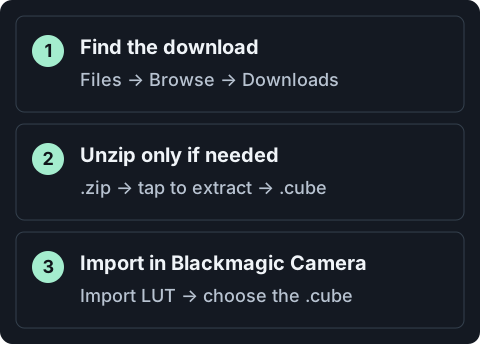
1. Find the download in Files
Open the iPhone Files app, tap Browse, and check Downloads under iCloud Drive or On My iPhone. Use the download location set in your browser if it is elsewhere.
If the file has a cloud icon, download it to the phone before importing. You can also copy it to a folder under On My iPhone to keep it available without a connection.
2. Extract it only if it is a ZIP
A .cube file needs no unpacking. If another LUT pack came as a ZIP, tap the ZIP in Files, open the new folder, and find the .cube inside. Apple explains this in its Files instructions.
Do not rename a ZIP or a web page to .cube; that will not make it a LUT.
3. Import the .cube from Blackmagic Camera
Open Settings > LUTs and choose Import LUT under LUT Actions. In versions with LUT Selection, open that menu first. Browse to the .cube and select it.
You do not need to move the file into a fixed Blackmagic Camera/LUTs folder to use the import picker.
File import overview. This is an illustration, not an app screenshot.
4. Select the imported LUT for the preview
Choose your Apple Log to Rec.709 LUT. If your version has Enable Imported LUTs, turn it on so the LUT is available. Enable Display LUT, or the display LUT control in the camera view, and check that the preview changes.
Toggle the preview LUT off and on once. The Log image should look flatter; the converted preview should have more contrast. Importing the file alone does not enable it.
5. Check the recording switch and test a clip
Leave Record LUT to Clip off for later grading. Record ten seconds, stop, and open the clip from your chosen storage location. Confirm it was saved there before starting the shoot.
Where to choose and use the LUT


Display LUT or Record LUT to Clip?
Grading later? Keep Record LUT to Clip off.
Set the recording color space to Apple Log or Apple Log 2, and use Display LUT for the preview. This keeps the LUT out of the recorded image so you can choose the conversion and look later.
Display LUT changes the image you monitor while shooting. It helps you judge the shot without committing the LUT to the recording.
Record LUT to Clip applies the LUT to the recorded image in a supported non-RAW workflow. Use it when you deliberately want that result in the file, such as a quick Rec.709 delivery. You cannot later remove a baked-in LUT to recover the untouched Log image. Test your chosen codec and settings before relying on it.
A flat recording with a colorful preview is expected when only Display LUT is enabled. A player or editor may also apply its own display conversion, so appearance alone does not prove whether the LUT was recorded.
For editing, follow the DaVinci Resolve guide or the Premiere Pro guide. Convert the Log clip once. If the recording already includes the conversion, do not apply it again.
Want a creative look?
The LUT used here gives you a neutral Rec.709 image. To add a style, convert the Log clip first, then apply a Rec.709 creative LUT in your editor. Explore the Apple Log Creative LUT Starter Pack.
Common problems
- The .cube is greyed out or missing: check that it is fully downloaded, extracted from any ZIP, and a supported 17-point or 33-point 3D LUT. Try importing a local copy from On My iPhone.
- The LUT imported but is not listed: check Enable Imported LUTs if present, then reopen the LUT selector.
- The preview is still flat: select the LUT and enable the display LUT control. Downloading or importing does not switch it on.
- Colors look wrong: check that the LUT matches Apple Log or Apple Log 2. They are not interchangeable.
- The recorded clip looks different: check Record LUT to Clip and any automatic conversion in the player or editor.
- Recording stops or drops frames: check the SSD, cable, power, free space, and heat. Try a lower frame rate or a lighter codec setting, then test again.
Record ProRes Log to an external SSD
For a normal-speed ProRes shoot, start with ProRes 422, 4K, and your project's 24, 25, or 30 fps. Choose 422 LT if smaller files matter; choose HQ when the job calls for it and your storage can handle the larger files. Use 60 or 120 fps when you need that frame rate and your phone supports it.
ProRes data rate follows the codec profile, resolution, and frame rate; it is not one universal Mbps setting. Log does not require the highest bitrate option.
Check the cable and sustained write speed
A USB-C plug does not tell you how fast the connection is. Use a data cable rated for at least 10Gb/s. Look for the speed rating rather than just “USB-C” or “USB 3.2” on the packaging.
Apple gives these external-storage requirements for ProRes in its Camera app:
| Recording mode | Minimum drive write speed |
|---|---|
| 4K60 ProRes | 220MB/s |
| 4K120 ProRes | 440MB/s |
These are useful reference points, not a guarantee for every Blackmagic Camera codec and device combination. Check sustained write speed, not the drive's advertised peak read speed. Apple's guidance also specifies exFAT storage and a maximum drive power draw of 4.5W. See Apple's external ProRes requirements.
Confirm that the SSD is actually recording
Connect the drive and open Settings > Media > Save Clips to. Choose Files and a folder on the SSD. Record at your intended settings for at least a minute, then play the file back from that folder. For long takes, test for as long as you expect to record; a short test will not reveal every heat or sustained-speed problem.
Before each shoot, check the save destination and remaining space. A connected drive is not necessarily the selected recording destination.
Frequently asked questions
Does Display LUT change my Apple Log recording?
Not when it is used only for monitoring and Record LUT to Clip is off. The recording color space must also be set to Apple Log or Apple Log 2.
Do I need an SSD to shoot Log?
No. Log is a color setting. External storage becomes useful when your chosen codec, frame rate, or recording length needs it. Check the options available on your phone.
Can I use the 65-point LUT?
Use the 33-point file in Blackmagic Camera. Keep 65-point for compatible desktop grading software.